Appearance
Dashboard
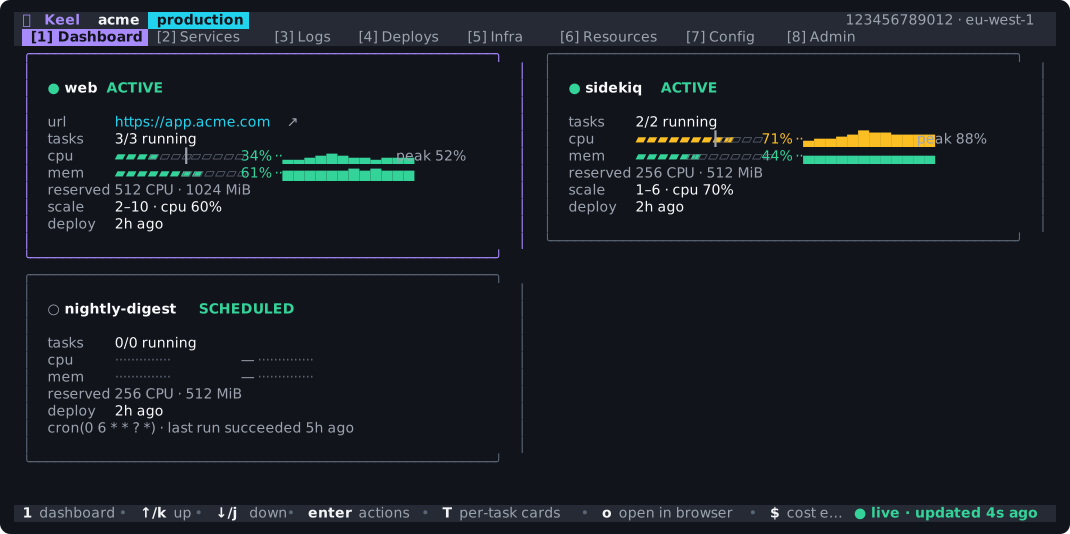
keel dashboard opens a full-screen terminal interface for live ECS, RDS, ElastiCache, ALB, CloudWatch, and SSM data. It refreshes automatically. When the optional control plane is present, reads use its shared cache; --direct forces the IAM path.
Follow a deployment
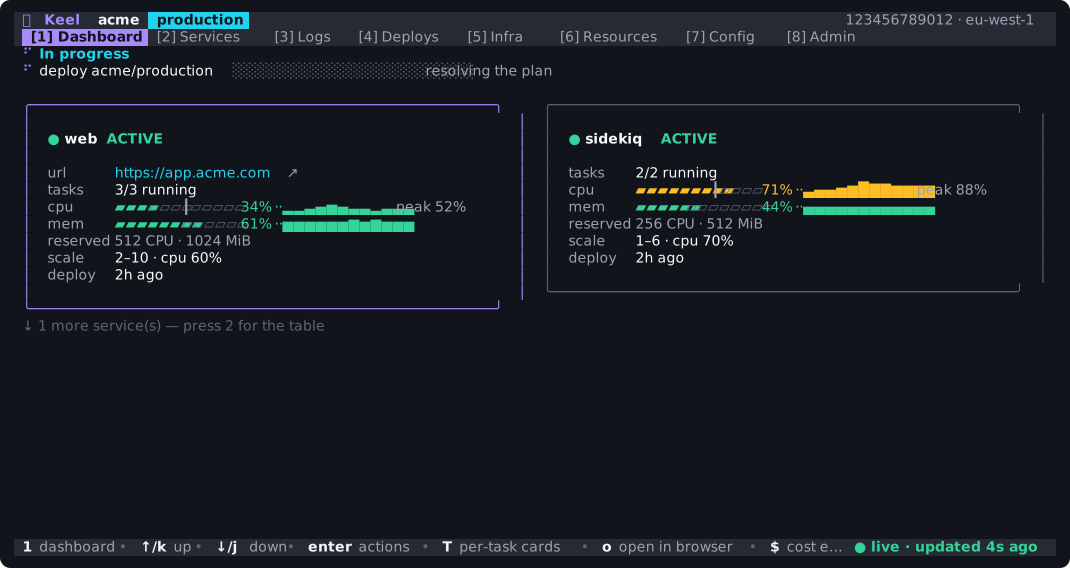
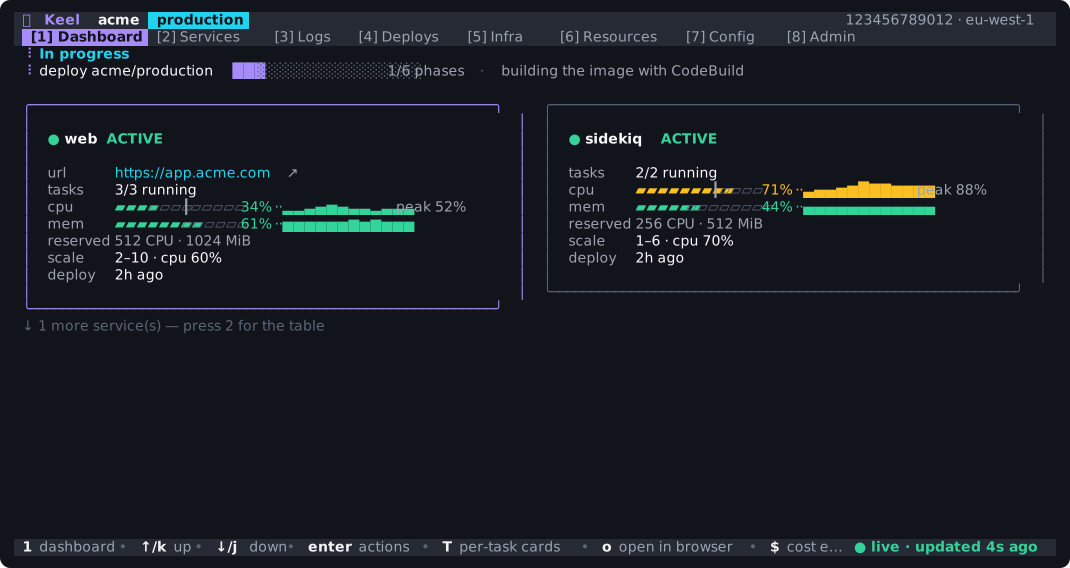
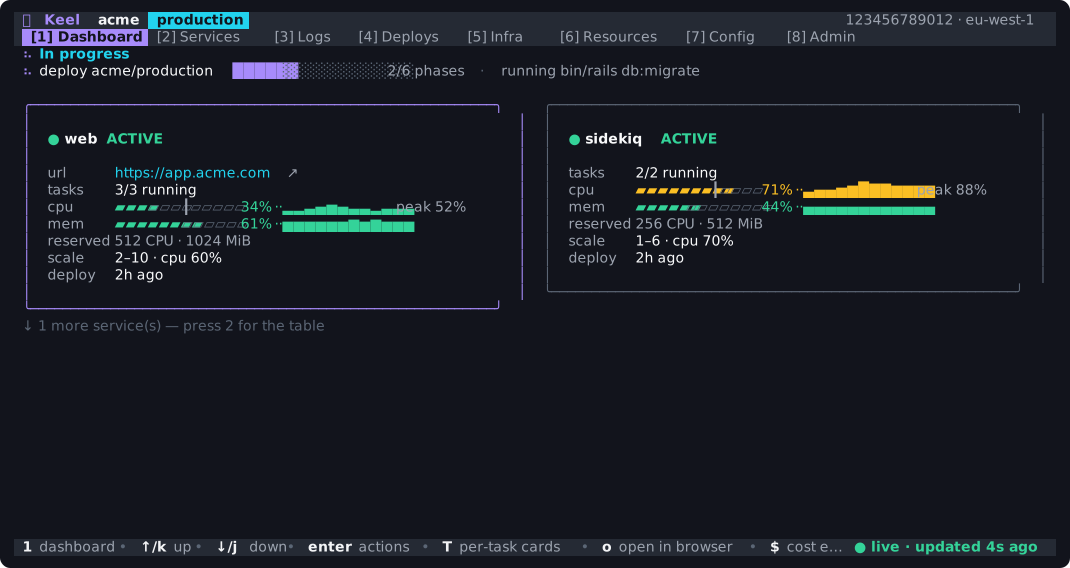
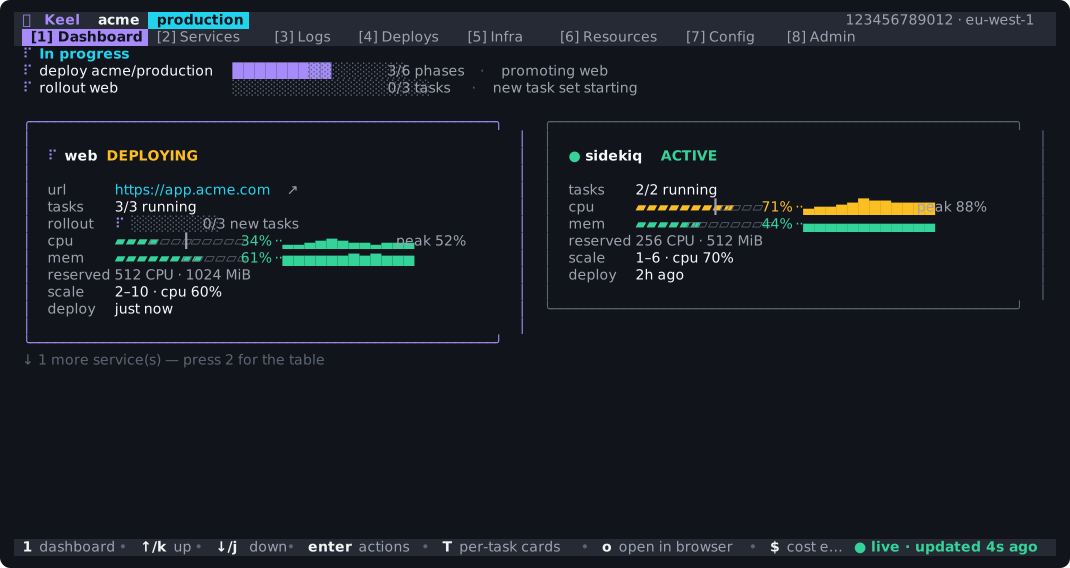
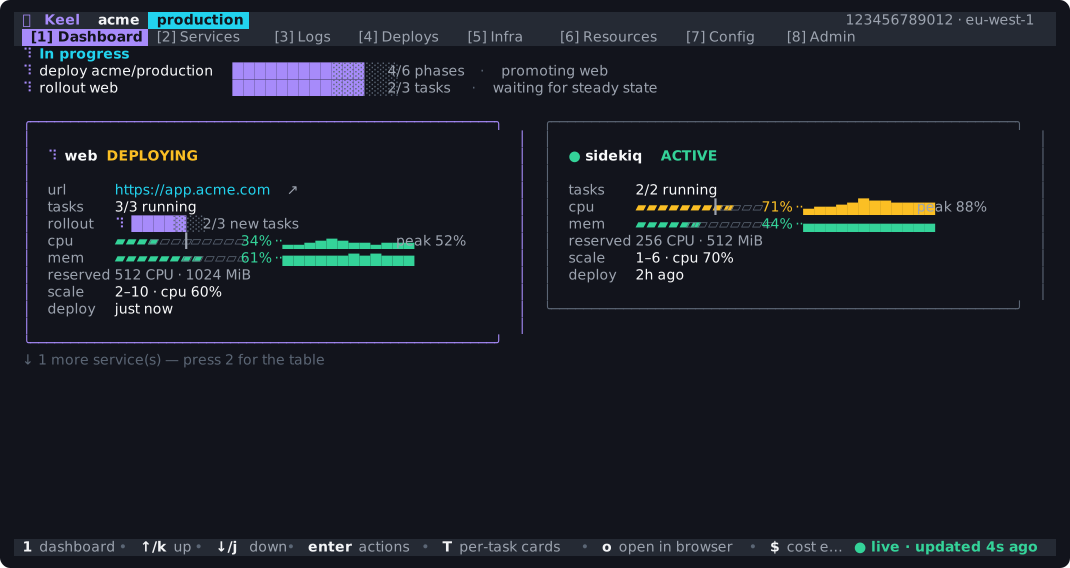
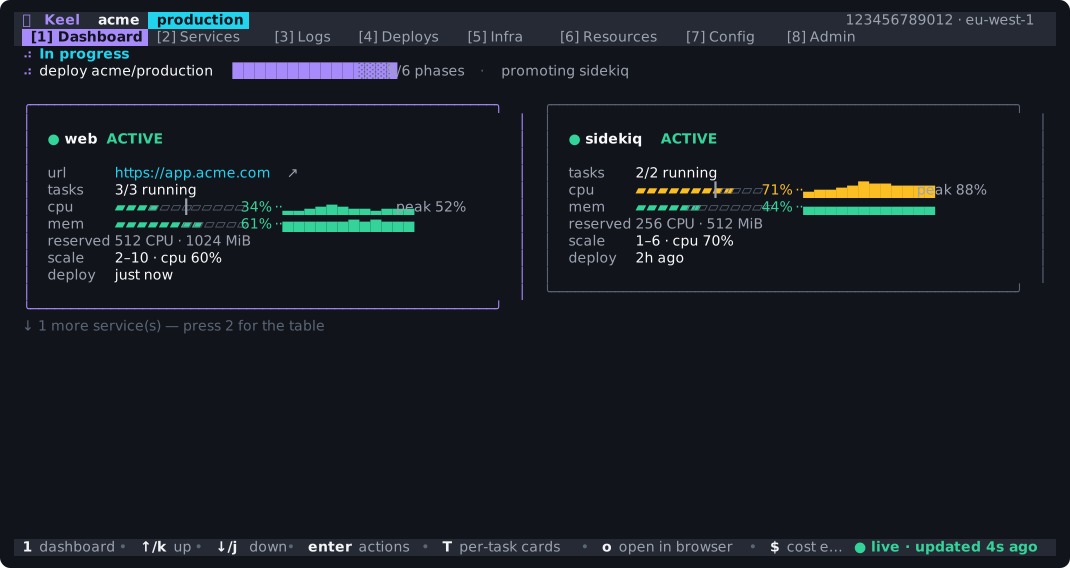
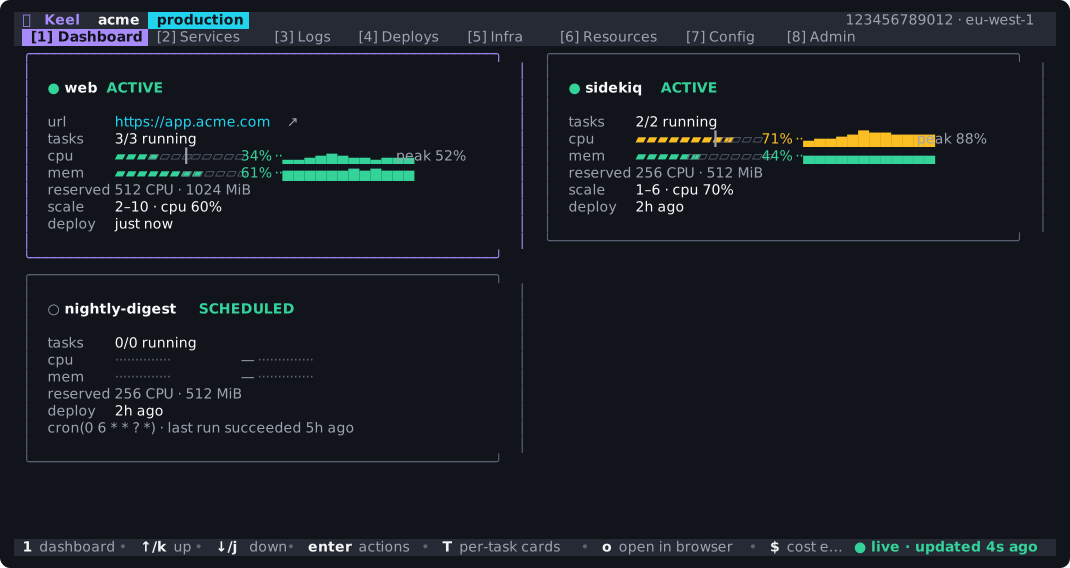
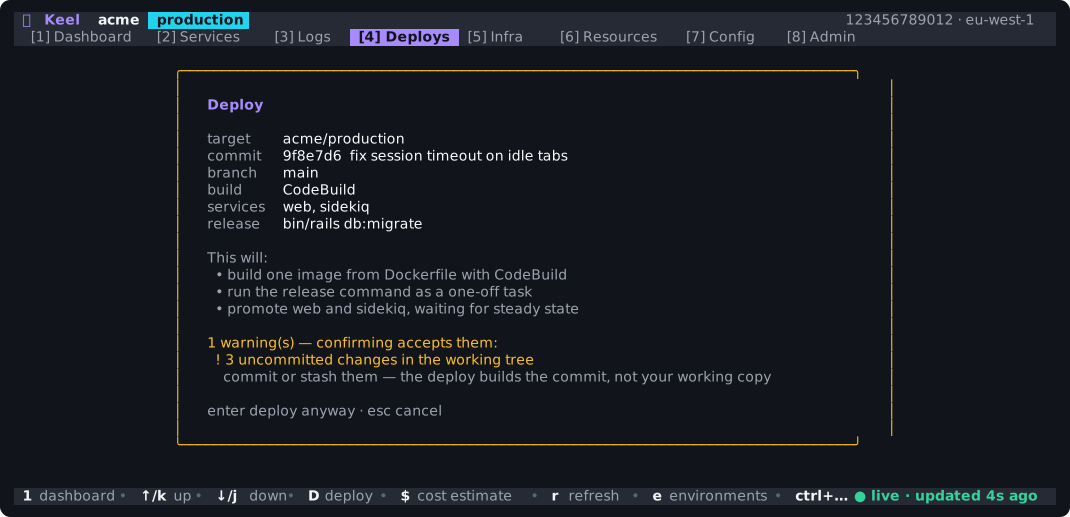
Press D to review and start a deployment. The activity panel shows its current phase, progress for each new ECS task set, and resources being changed. The panel disappears when the environment is idle.
1 / 7
Before deployment, Keel shows the commit, services, release command, and each preflight warning.
Tabs
| Key | Tab | Shows |
|---|---|---|
1 | Dashboard | Service cards with task counts, CPU and memory gauges, sparklines, autoscaling targets, last-deploy age, and the routed web service's URL. The activity panel tracks infrastructure changes, deployments, and ECS rollouts |
2 | Services | The same live service data as a table |
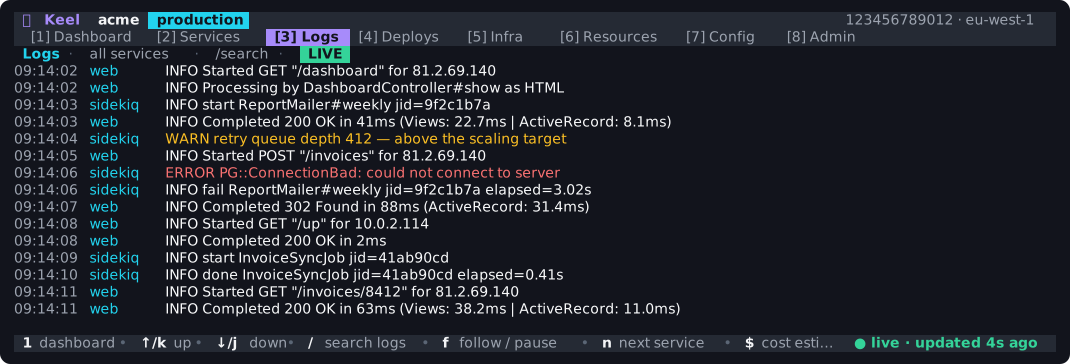
3 | Logs | CloudWatch log viewer with search, per-service filtering and follow/pause |
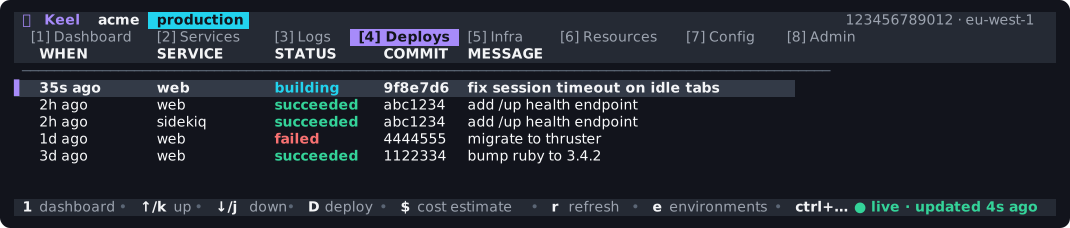
4 | Deploys | Deployment history, deploy locks, rollback, and live deployment progress |
5 | Infra | A navigable OpenTofu plan diff and per-resource apply progress |
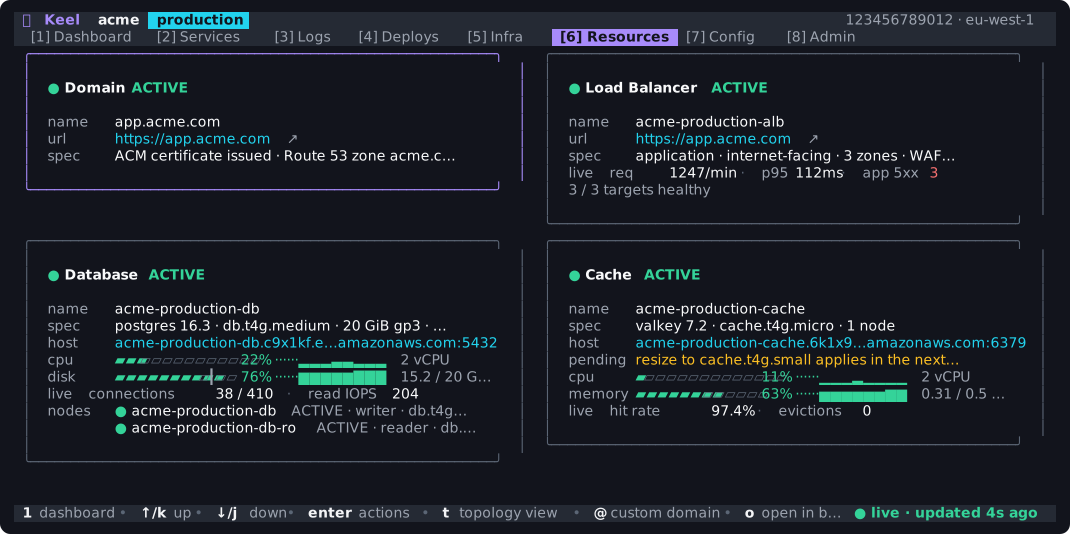
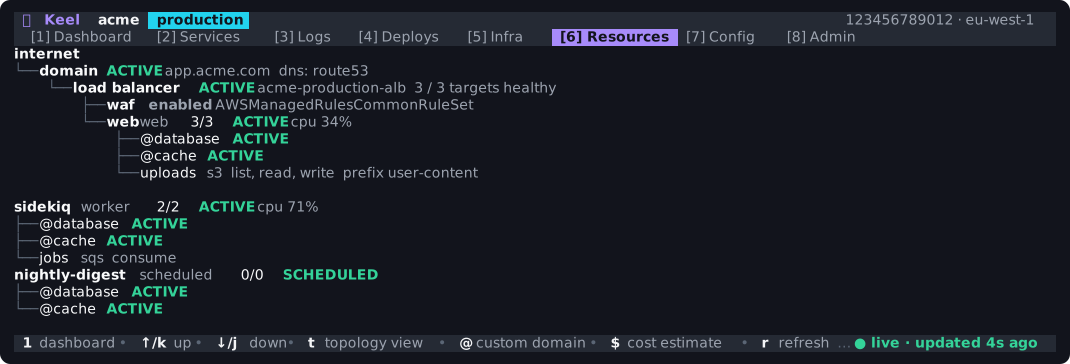
6 | Resources | Live status and metrics for managed infrastructure, resource actions, and the topology diagram (t) |
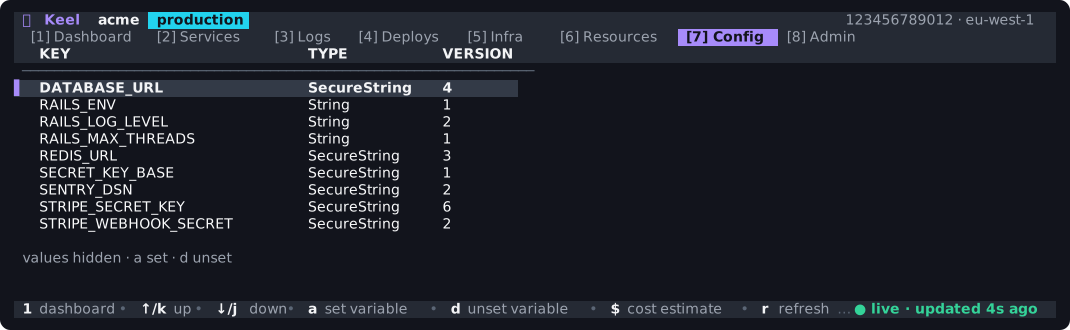
7 | Config | Configuration variables from SSM (keys/type/version only — values hidden) |
8 | Admin | IAM members and operators, MFA state, operator grant counts, capability editing, authorization decisions, and recorded sessions |
The tab bar abbreviates labels in narrow terminals. Tabs, cards, tables, the environment selector, and dialogs support mouse input. The routed web service's URL opens in your browser.
An environment has at most one routed web service. The dashboard shows https://<domain> when a custom domain is configured and http://<alb-dns> otherwise. Worker services do not have a public URL.
Services

Logs
/ searches, f follows or pauses the tail, and n cycles the filter through your services. Recognized severity levels are color-coded; other lines use the default color.
Deploys
Infra
The Infra tab shows a navigable plan diff. ± marks a replacement and identifies the field that requires it; - marks a deletion. Press A, then type apply to confirm. Keel applies the displayed plan and streams per-resource progress into the tab.

Resources
The Resources tab shows live RDS, ElastiCache, ALB, and domain state. It highlights non-zero error metrics such as 5xx responses, evictions, and rejected connections. Changes accepted by AWS but not yet complete appear as pending.
Press t to view the environment as a topology diagram, including internet-facing resources, load-balancer routing, and service bindings.
Config
Admin
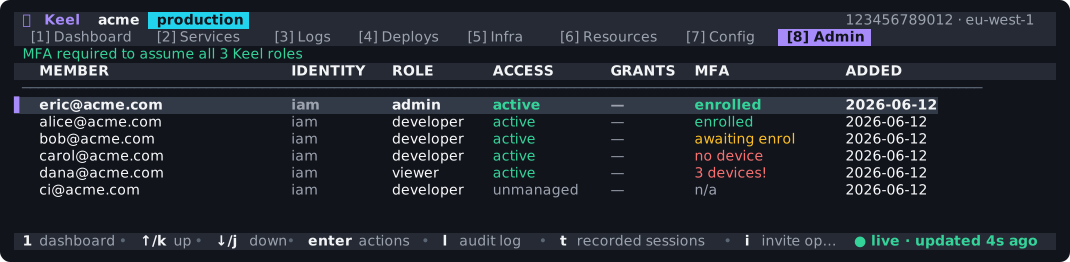
Press enter on an operator to inspect every capability they can hold, including absent ones, and add or revoke grants across any declared environment. i invites, s suspends or restores without losing grants, and x ends an enrollment. l opens the authorization decision log; t opens recorded sessions.
More on IAM team onboarding, operators, and audit records.
Keybindings
| Key | Action |
|---|---|
1–8 | Switch tabs |
↑/↓ or k/j | Navigate the active list |
enter | Open the actions menu (Dashboard/Services, or a person on Admin) |
ctrl+k | Command palette — run any keel command |
/ | Search logs (Logs tab) |
f | Follow / pause the log tail (Logs tab) |
n | Filter logs to the next service (Logs tab) |
p / A | Plan / apply infrastructure changes (Infra tab, admin) |
t | Toggle the topology diagram (Resources tab) |
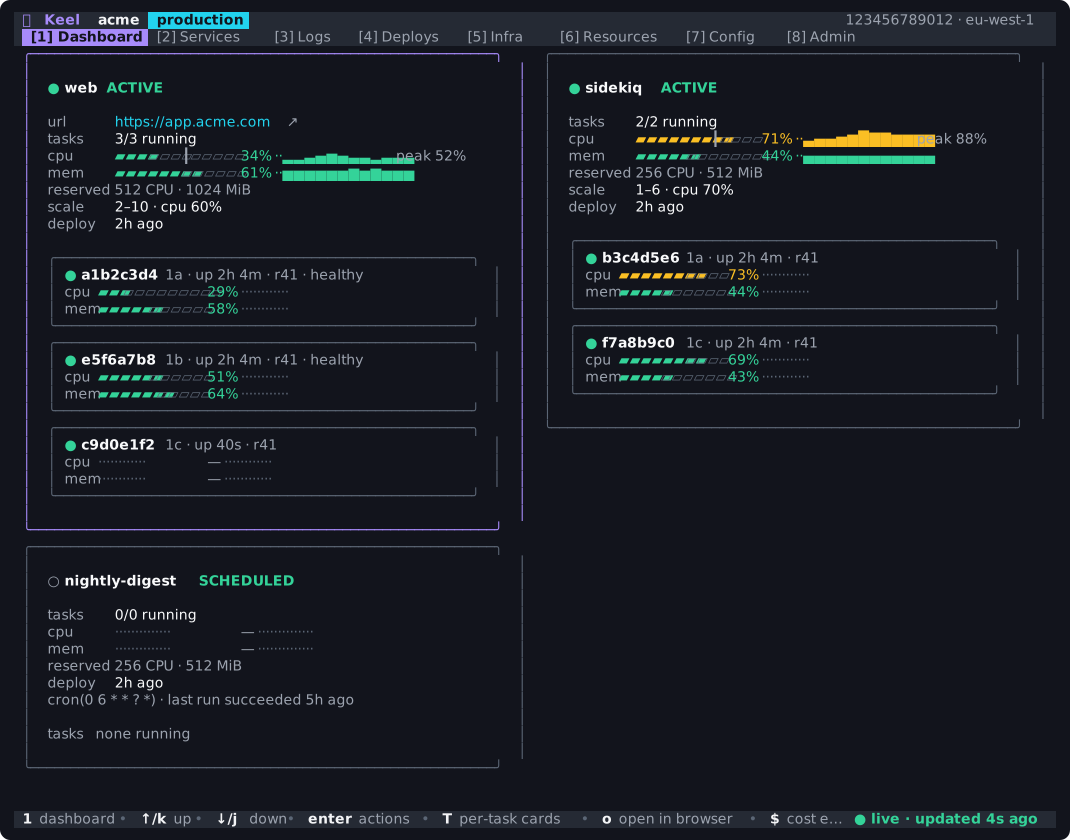
T | Toggle per-task cards (Dashboard tab) — each task's ID, zone, uptime, revision, health, and its own CPU/memory |
D | Deploy, with a plan card first (Deploys tab, developer) |
$ | Cost estimate overlay (any tab) — the monthly estimate for this environment, priced from config alone |
o | Open the selected row's URL in a browser (when it has one) |
a / d | Set / unset a config variable (Config tab, developer) |
i | Invite an operator (Admin tab) |
s / x | Suspend or restore / end an operator enrollment (Admin tab) |
l / t | Authorization decisions / recorded sessions (Admin tab) |
r | Refresh now |
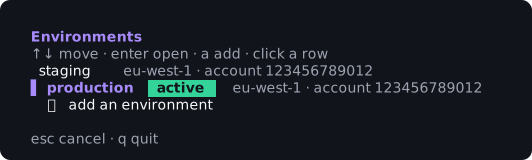
e | Environments — a picker showing each environment's region and account, which can also add a new environment to keel.yml |
s | Settings overlay outside Admin (toggle verbose / cautious) |
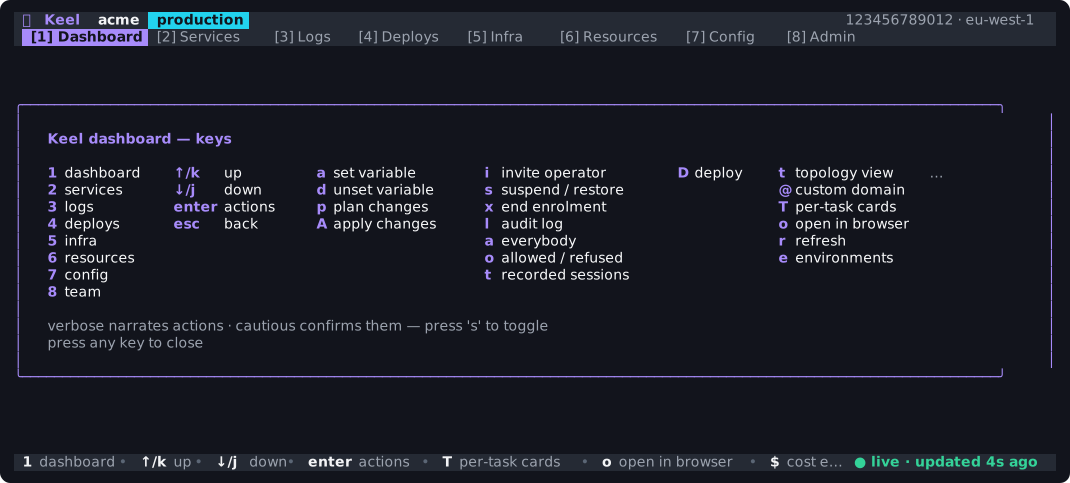
? | Help overlay |
esc | Back / close a panel |
q or ctrl+c | Quit |
The help overlay is rendered from the bindings themselves.
Per-task cards
T expands a service card into one card per running task, showing task ID, availability zone, uptime, task-definition revision, health, CPU, and memory.
When something is wrong
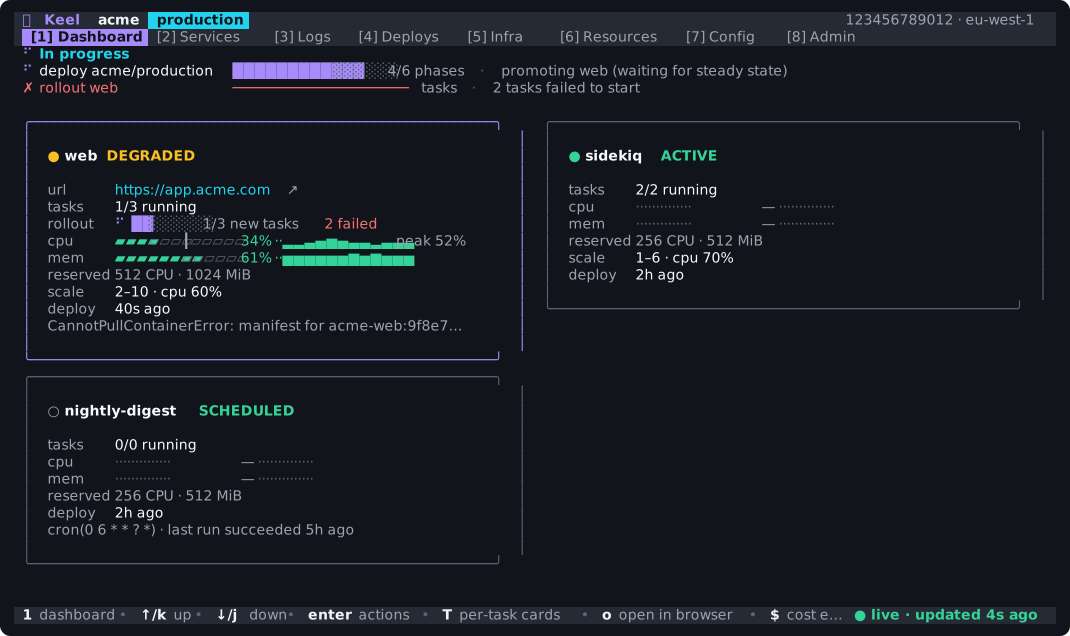
When a service has fewer tasks than desired, its status changes to DEGRADED. The card shows the container reason and the activity panel marks a failed rollout.
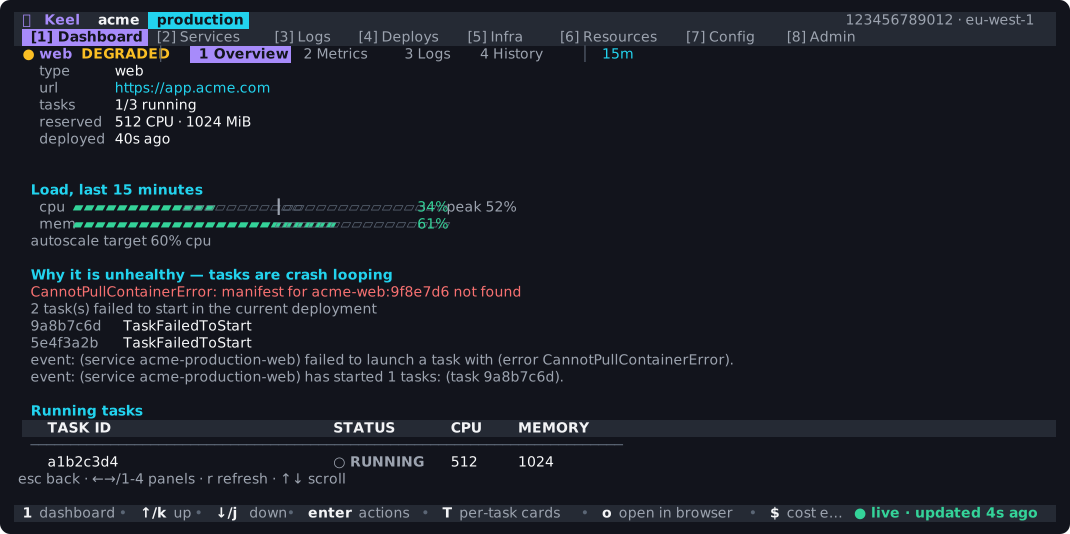
Press enter on a service to see stopped tasks, recent ECS events, and the reason it is unhealthy.
The command palette
ctrl+k opens a searchable list of every command in the CLI.
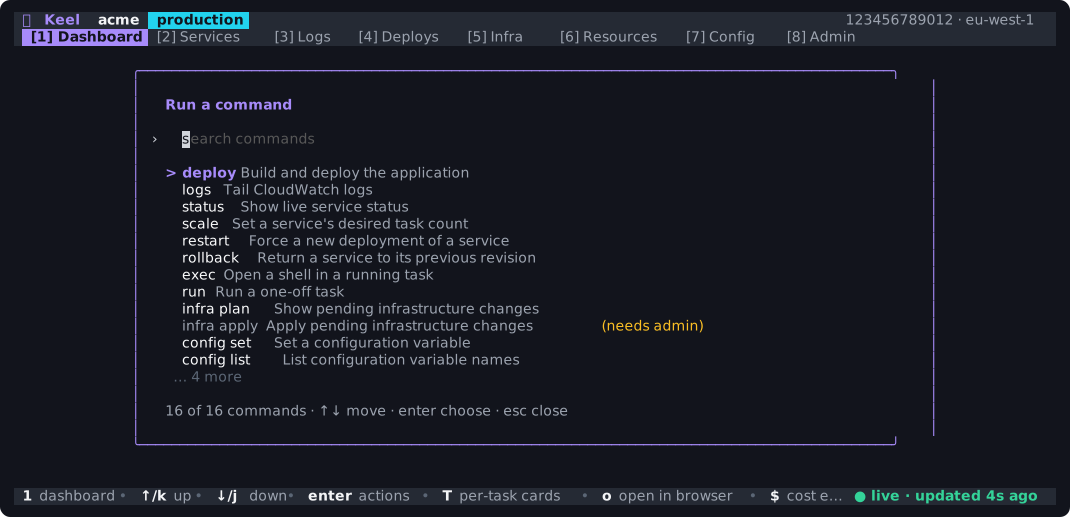
Choosing one opens its command line, prefilled with the arguments and flags it takes.
Cost estimate
$ prices the environment from its configuration and the live task counts, broken down by what is charged for.
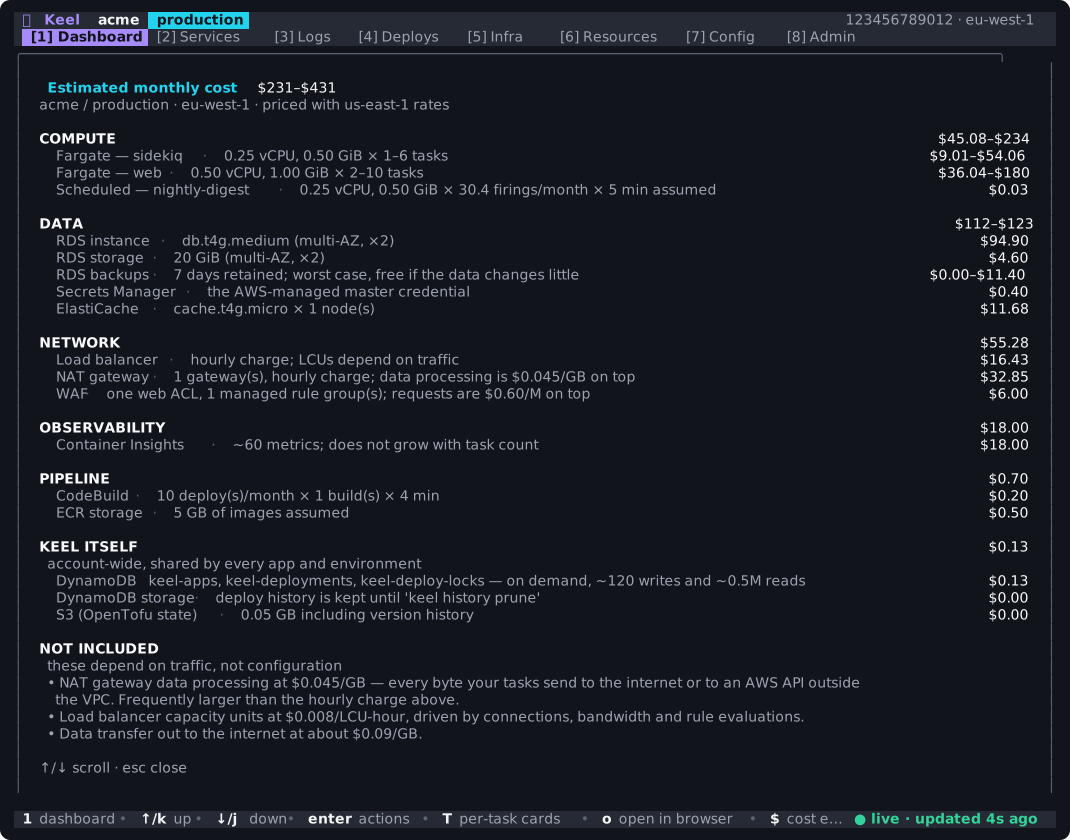
Keel shows ranges when cost depends on unknown usage. Autoscaled services are priced from minimum to maximum capacity, for example. See Cost Estimates & Budgets.
Environments
e opens the picker: each environment with its region and account. It can also add a new environment to keel.yml.
Service actions
Press enter on a service to open the actions menu:
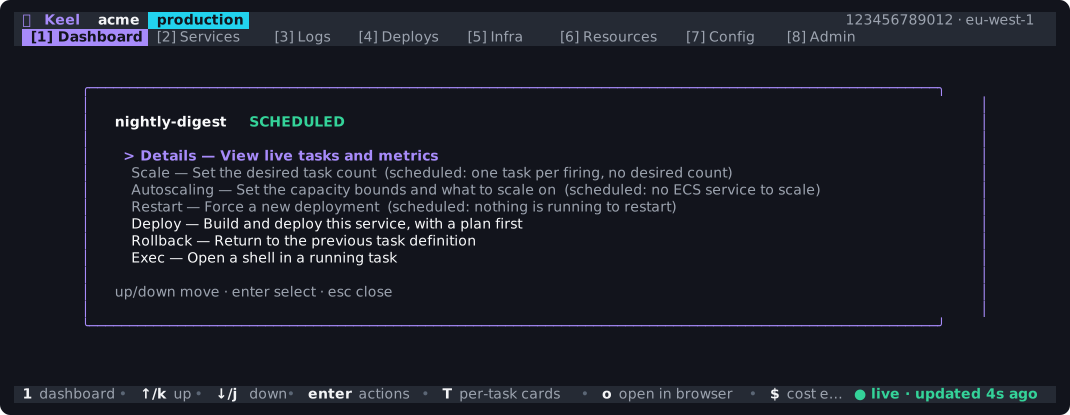
- Details — a drill-down with running tasks, utilization, and — when a service is short of tasks — why: the container reason from its stopped tasks, its failed task count, and recent ECS service events. This is what turns "0/3 running" into "CannotPullContainerError: manifest not found".
- Scale — change the desired task count (ECS
UpdateService). - Autoscaling — set the capacity bounds and what to scale on (CPU, memory, requests). Writes
keel.ymland opens a plan on the Infra tab. - Restart — force a new ECS deployment.
- Deploy — build and deploy this service, with a plan card first: enter confirms and progress streams into the Deploys tab.
- Rollback — preview the revision it would return to, the image that revision runs, and whether that image still exists in ECR, then apply it.
- Exec — open an interactive shell in a pane inside the dashboard. Keel speaks the session protocol itself, so the dashboard stays on screen and needs no AWS CLI or session-manager plugin.
ctrl+creaches the shell;ctrl+]closes the pane.
On an operator session, an authorization refusal is shown as a missing grant rather than as an API outage. If no environment was explicitly selected and several exist, the dashboard opens the picker instead of assuming the file's default, because the operator may not be able to read it.